
HTML CSS JavaScript Editor Online - Complete Frontend Playground

Table of Contents
HTML CSS JavaScript Editor Online: Instant Coding Environment
The HTML CSS JavaScript Editor on tools-online.app represents a fundamental shift in how we approach frontend coding. It is a zero-setup, browser-based Integrated Development Environment (IDE) that is ready the moment you load the page. By moving the development stack to the cloud (while keeping execution local), we eliminate the need for software installation entirely.
- Test Concepts Instantly: Wondering how a new CSS Grid property behaves? Type it in and see the result immediately.
- Debug in Isolation: Is a script failing because of your local environment or the code itself? Isolate the snippet in our clean sandbox to find out.
- Learn the DOM: Visualize the relationship between HTML structure, CSS styling, and JavaScript logic in real-time.
Whether you are a student on a Chromebook, a designer on an iPad, or a developer on a corporate laptop with restricted permissions, this tool ensures your development environment is always just a click away.
Edit HTML, CSS, and JavaScript Online: Overview
Unlike some tools that force you into a single file, our HTML CSS JavaScript Editor at tools-online.app separates concerns just like a real project structure. Here is a comprehensive breakdown of the workspace elements you will encounter:
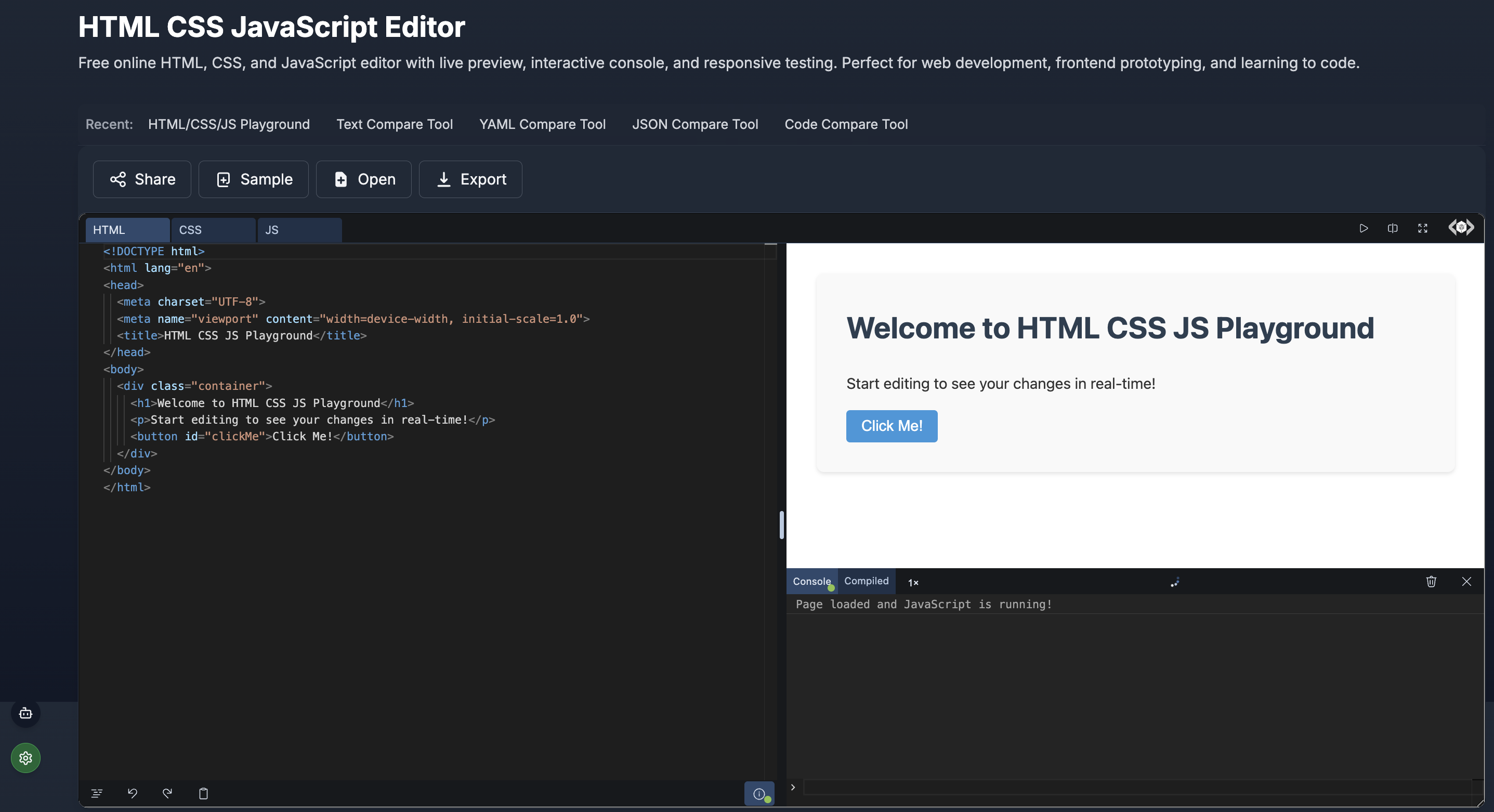
- HTML Tab: This panel is pre-loaded with a standard HTML5 boilerplate (
<!DOCTYPE html>,<meta charset="UTF-8">,viewportsettings). - CSS Tab: A dedicated stylesheet editor supporting modern CSS3.
- JS Tab: The logic layer. Here you can write vanilla JavaScript, modern ES6+ syntax (arrow functions, async/await), or reference external libraries.
- Real-Time Rendering: As you type a character in the code pane, the preview updates instantly. There is no "Run" button required
- Console Tab: Essential for JavaScript development. It captures standard
console.log()messages,console.error()alerts, and warnings. - Compiled Tab: This view shows the "final" code that the browser interprets.
- Share: Generates a unique, permanent URL to your current project state.
- Sample: If you are stuck, clicking "Sample" loads a pre-built, functional web application (like a To-Do list or a Calculator) to give you a working starting point.
- Open / Export: You are not locked into the browser. You can upload local
.htmlfiles to edit them, or export your work as a downloadable file to continue working offline. - Settings (Gear Icon)(Bottom Left): Customize your coding experience. Change the theme (Dark/Light), adjust font sizes for better readability, or toggle auto-run behaviors.
- AI Chat (Robot Icon)(Bottom Left): This opens the gateway to our integrated AI coding assistant, allowing you to generate code, fix bugs, and optimize logic without leaving the tab.
AI HTML CSS and JS Generator Online
Our HTML CSS JavaScript Editor helps you instantly generate, enhance, and refine js, html, and css using simple prompts—just follow the quick setup guide below.
- Get your free API key from AIML API
- Click "Settings" icon (located lower left) in any tools-online.app tool
.png)
- Add API key and save
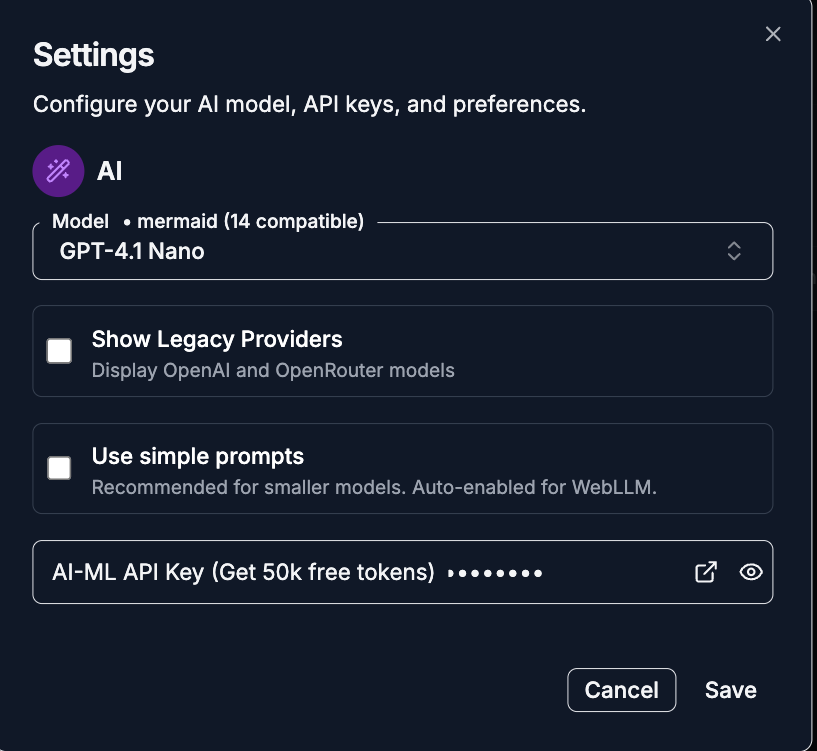
- Click the AI Chat button (located lower left)
.png)
How to Use AI for Web Development:
- For HTML: "Generate a semantic HTML5 structure for a blog post with a header, article body, sidebar, and footer."
- For CSS: "Write CSS to center a div both vertically and horizontally using Grid, and give it a soft shadow effect."
- For JavaScript: "Write a function that validates an email address using Regex and adds a red border to the input field if it is invalid."
- For Debugging: Paste a broken code snippet into the chat and ask, "Why is this event listener not triggering when I click the button?"
Best HTML Editor Online
Our HTML CSS JavaScript Editor highlights syntax errors, auto-closes tags, and helps you visualize the Document Object Model (DOM) hierarchy.
Popular Example: Semantic Landing Page Structure
Copy the code below into the HTML tab of our HTML editor online. Watch how the editor color-codes the tags versus the content, making the structure readable.
<header class="main-header">
<nav>
<div class="logo">BrandName</div>
<ul>
<li><a href="#home">Home</a></li>
<li><a href="#about">About</a></li>
<li><a href="#services">Services</a></li>
<li><a href="#contact">Contact</a></li>
</ul>
</nav>
</header>
<main>
<section class="hero">
<h1>Build Faster with Online Tools</h1>
<p>Code, preview, and deploy directly from your browser with zero setup.</p>
<button class="cta-button" onclick="alert('Welcome!')">Get Started</button>
</section>
<section class="features">
<article class="feature-card">
<h2>HTML5</h2>
<p>Full support for semantic markup and modern tags.</p>
</article>
<article class="feature-card">
<h2>CSS3</h2>
<p>Test Flexbox, Grid, and Animations instantly.</p>
</article>
<article class="feature-card">
<h2>JavaScript</h2>
<p>Debug logic with our integrated console.</p>
</article>
</section>
</main>
<footer>
<p>© 2025 Tools-Online. All rights reserved.</p>
</footer>CSS Editor Online with Flexbox Support
A CSS editor online is indispensable for designers who need to tweak pixels, colors, and layouts until they are perfect. Our playground supports the full spectrum of modern CSS, including Flexbox, CSS Grid, Variables, and CSS Transitions.
Popular Example: Glassmorphism Card Effect
"Glassmorphism" is a popular UI trend characterized by transparency, background blur, and floating borders. It can be tricky to get right. Copy the code below into the CSS tab of our CSS editor online (paired with the HTML above) to see it come to life.
/* Reset and Base Styles */
* {
  box-sizing: border-box;
}

body {
  /* Colorful gradient background to show off the glass effect */
  background: linear-gradient(45deg, #ff6b6b, #4ecdc4, #45b7d1);
  font-family: 'Segoe UI', system-ui, sans-serif;
  min-height: 100vh;
  margin: 0;
  display: flex;
  flex-direction: column;
}

/* Header Styling */
.main-header {
  background: rgba(255, 255, 255, 0.1);
  backdrop-filter: blur(10px); /* The Glass Effect */
  padding: 1rem 2rem;
  border-bottom: 1px solid rgba(255, 255, 255, 0.2);
}

nav {
  display: flex;
  justify-content: space-between;
  align-items: center;
  color: white;
}

nav ul {
  display: flex;
  list-style: none;
  gap: 20px;
}

nav a {
  color: white;
  text-decoration: none;
  font-weight: 500;
}

/* Hero Section with Glass Card */
.hero {
  flex: 1;
  display: flex;
  flex-direction: column;
  justify-content: center;
  align-items: center;
  text-align: center;
  color: white;
  padding: 50px;
}

.features {
  display: flex;
  justify-content: center;
  gap: 20px;
  padding: 40px;
  flex-wrap: wrap;
}

/* Feature Cards using Glassmorphism */
.feature-card {
  background: rgba(255, 255, 255, 0.25);
  backdrop-filter: blur(12px);
  -webkit-backdrop-filter: blur(12px); /* Safari support */
  border-radius: 16px;
  border: 1px solid rgba(255, 255, 255, 0.3);
  padding: 24px;
  width: 250px;
  box-shadow: 0 8px 32px 0 rgba(31, 38, 135, 0.37);
  transition: transform 0.3s ease;
}

.feature-card:hover {
  transform: translateY(-10px);
  background: rgba(255, 255, 255, 0.35);
}

/* Button Styling */
.cta-button {
  background: white;
  color: #ff6b6b;
  border: none;
  padding: 12px 30px;
  border-radius: 50px;
  font-size: 1.1rem;
  font-weight: bold;
  cursor: pointer;
  box-shadow: 0 4px 15px rgba(0,0,0,0.2);
  transition: transform 0.2s;
}

.cta-button:hover {
  transform: scale(1.05);
}
JavaScript Editor Online
Static pages are informative, but JavaScript makes them interactive. An interactive JavaScript editor online is essential for testing logic, handling user input, and manipulating the DOM. Our tool allows you to write scripts that interact directly with your HTML elements and output debug information to a built-in console.
Popular Example: Interactive Click Counter & DOM Manipulation
This script adds functionality to the static HTML we wrote earlier. It tracks button clicks, updates the UI dynamically, and logs data for debugging. Paste this into the JS tab of our JavaScript editor online.
// 1. Select DOM elements
const button = document.querySelector('.cta-button');
const heroText = document.querySelector('.hero h1');
const features = document.querySelectorAll('.feature-card');

// Initialize state
let count = 0;

// 2. Add Event Listener to Button
button.addEventListener('click', () => {
  count++;

  // Update the button text
  button.innerText = `Clicked ${count} times`;

  // Logic: Change styles based on count
  if (count === 1) {
    heroText.innerText = "You started the journey!";
    console.log("First click detected!");
  } else if (count === 5) {
    heroText.innerText = "You are on fire! 🔥";
    heroText.style.color = "#ffe66d"; // Change color dynamically
    heroText.style.textShadow = "0 0 10px rgba(0,0,0,0.5)";
    console.warn("User reached 5 clicks - Achievement Unlocked");
  } else if (count === 10) {
    alert("Okay, that is enough clicking for today!");
    count = 0; // Reset
    button.innerText = "Get Started";
    heroText.innerText = "Build Faster with Online Tools";
    heroText.style.color = "white";
  }
});

// 3. Add Hover Effects via JS (for advanced interaction)
features.forEach(card => {
  card.addEventListener('mouseenter', () => {
    // Log which card is being hovered
    const title = card.querySelector('h2').innerText;
    console.log(`Hovering over: ${title}`);

    // Add a temporary border
    card.style.borderColor = "#fff";
  });

  card.addEventListener('mouseleave', () => {
    card.style.borderColor = "rgba(255, 255, 255, 0.3)";
  });
});

console.log("Page loaded and JavaScript is ready.");
How to use the JS features:
- Click the Button: Watch the text change inside the button and the main H1 header update as you click. This demonstrates DOM Manipulation.
- Open the Console: Click the Console tab at the bottom of the editor. As you click, you will see blue "Info" logs and yellow "Warning" logs (at 5 clicks).
- Hover over Cards: Move your mouse over the feature cards. The console will log exactly which card you are touching, proving that the event listeners are active.
Using this JavaScript editor online allows you to test eventListeners and logic loops in a safe environment before implementing them in a production codebase.
Comparison: Online Editor vs. VS Code vs. JSFiddle
With so many tools available, why should you choose the HTML CSS JavaScript Editor on tools-online.app? Here is a detailed comparison against industry heavyweights.
| Feature | Tools-Online Editor | VS Code (Desktop) | JSFiddle / CodePen |
| Setup Time | Instant (0s) | Slow (Download + Install + Config) | Instant |
| Data Privacy | Local / Client-Side | Local | Cloud-Saved (Often Public by default) |
| AI Integration | Integrated | Requires Plugins (Copilot/Extensions) | Varies (Usually Paid/Pro features) |
| Performance | Lightweight | Resource Heavy (Uses significant RAM) | Heavy (Often loads ads/tracking scripts) |
| Offline Capability | Great (Works in browser once loaded) | Excellent | None (Requires Internet) |
| Best For | Prototyping, Privacy, Learning | Full-Stack Applications | Social Sharing & Showcasing |
Verdict:
- Use VS Code when you are building a full-stack application with a backend database, complex routing, and Git version control.
- Use Tools-Online when you need a private, fast, and secure environment to test a snippet, learn a concept, or use AI to generate code without the overhead of a heavy IDE.
Related Web & Code Tools
The tools-online.app is part of a larger ecosystem of utilities on tools-online.app designed to support your entire workflow.
For Backend & Logic
- PHP Online Editor: Frontend code often needs a backend. Switch to our PHP sandbox to test server-side scripts, process form data, or learn PHP syntax without installing XAMPP.
- TypeScript Editor: If you prefer type safety over vanilla JS, use this tool. Write TypeScript code and instantly compile it to clean JavaScript that you can paste back into the HTML editor.
- Python Editor: Run Python scripts for data processing, algorithm testing, or backend logic prototyping.
For Design & Diagrams
- MJML Editor: Coding responsive emails in raw HTML is painful. Use our MJML tool to build responsive email templates that work in Outlook, then export the HTML for your marketing campaigns.
- Mermaid Diagram Tool: Before you code your UI, visualize your application flow, user journey, or database structure using text-to-diagram generation.
For Data & Debugging
- JSON Compare Tool: If your JavaScript is fetching data from an API, use this tool to debug the response. Compare two JSON objects to find missing keys or data discrepancies.
- Code Compare Tool: Track changes between two versions of your JavaScript or CSS files. Useful when debugging why a "fix" broke your layout.
- Text Compare Tool: Find subtle typos or differences in content/copy.
- YAML Compare Tool: If you are deploying your HTML app using Docker or Kubernetes, use this to validate your configuration files.
Essential Utilities
- Online Notepad: A quick, persistent place to store code snippets, draft documentation, or write prompt notes using the same AI assistant found in the code editor.
- SQL Formatter: If your JS app interacts with a database, beautify your complex SQL queries here before embedding them in your backend code.
For a complete list of recommended workflows and how to combine these tools effectively, check out our comprehensive guide on Top 9 Browser-Based Utilities for Daily Tasks.
Start Coding Instantly
Stop installing software. Build, test, and share web snippets instantly with our secure, AI-powered browser playground.