
TypeScript Online Editor - Compile & Run TS Instantly

Table of Contents
TypeScript Online Editor: Zero-Config Type Safety
TypeScript has become the industry standard for modern web development, adding robust static typing to JavaScript. However, setting up a TypeScript environment locally can be daunting. It usually requires installing Node.js, configuring a tsconfig.json file, setting up a build pipeline (like Webpack or Vite), and managing node_modules.
The TypeScript Online Editor on tools-online.app removes all this friction. It provides an instant, zero-config environment where you can write TypeScript and see it run immediately.
- Instant Compilation: Type code on the left, see it run on the right. No build steps required.
- Learn by Doing: Experiment with Interfaces, Types, and Generics in a safe sandbox without worrying about breaking your local environment.
- Inspect the Output: Unique to our tool, you can toggle a view to see the "Compiled JavaScript," helping you understand exactly how your TypeScript syntax translates to browser-readable code.
Whether you are a React developer prototyping a component or a student learning why any is a bad practice, this tool offers the fastest way to write type-safe code.
Edit TypeScript Online: Step-by-Step
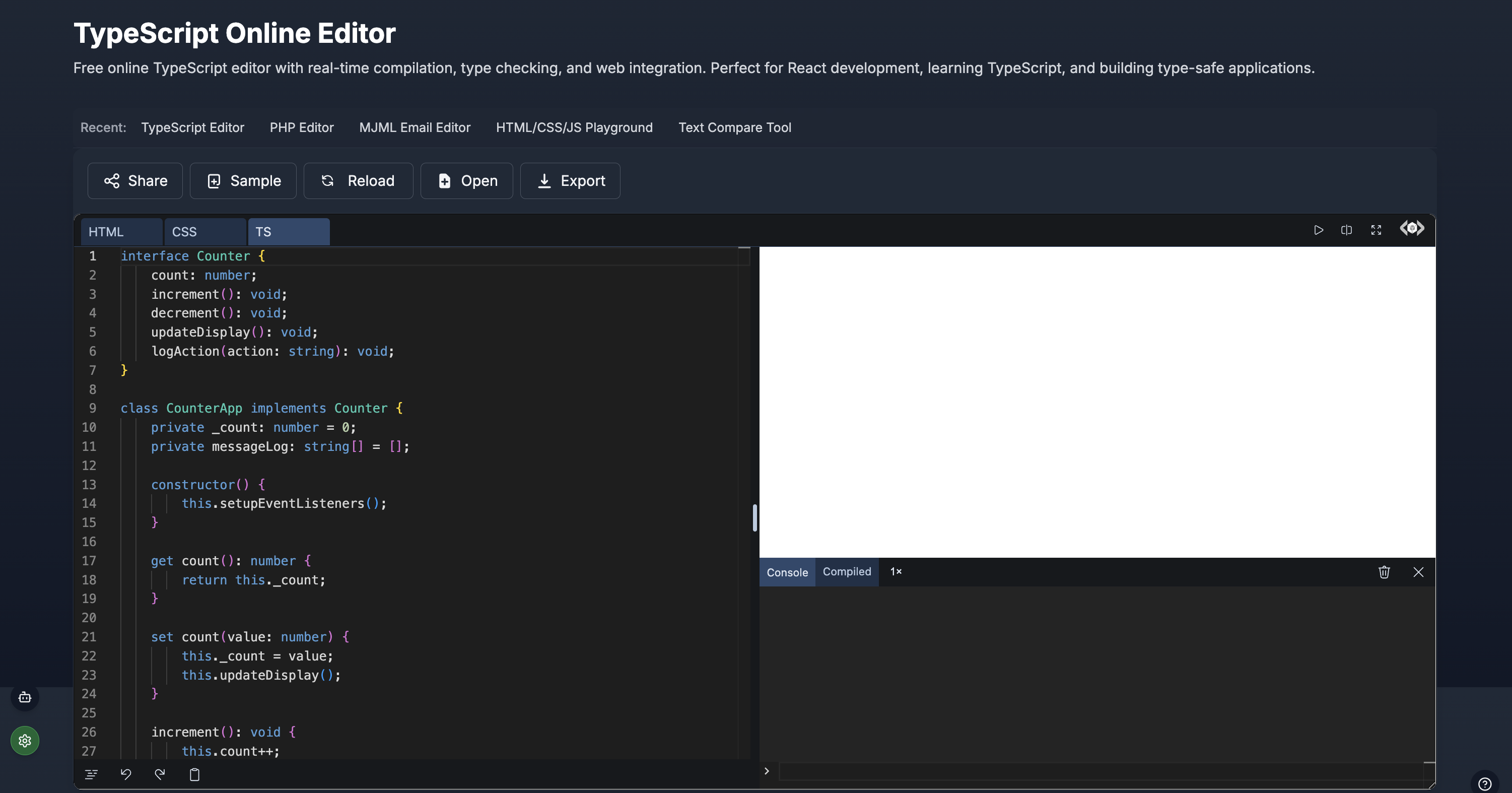
Our tools-online.app platform is designed to provide a seamless coding experience that bridges the gap between a simple playground and a full IDE. When you use the TypeScript Online Editor. Here is a comprehensive breakdown of the workspace elements you will encounter:
**
Just like our other editors, we separate concerns to mimic real-world development:
- TS Tab: The star of the show. This is where you write your
.tscode. The screenshot shows support for advanced features likeinterface Counter,class CounterApp, and type annotations (count: number). - HTML Tab: Define the DOM elements your script will interact with (e.g.,
<div id="app"></div>). - CSS Tab: Style your application to create a complete visual prototype.
- Auto-Transpilation: As you type, the editor quietly compiles your TypeScript into JavaScript in the background.
- Live Rendering: The executed code interacts with the HTML/CSS tabs to render the final result instantly in the white canvas area.
The Console & Compiled Output (Bottom Right)
Beneath the preview is the debugging suite, which is critical for TypeScript development.
- Console Tab: Captures runtime errors. If your logic is flawless but your runtime fails (e.g., trying to access a null DOM element), it shows up here.
- Compiled Tab: This is a killer feature for learners. It displays the raw JavaScript that the browser is actually running. You can see how your
interfacedefinitions disappear (since they are compile-time only) and howclassstructures are converted.
The Action Toolbar (Top)
- Share: Create a permanent link to your code to share with a mentor or colleague.
- Sample: Stuck? Click this to load a working example, like the Counter App shown in the screenshot.
- Export: Download your work to move it into a local VS Code project later.
Settings & AI Integration (Bottom Left)
- Settings: Configure editor preferences like tab size and theme.
- AI Chat: Access our AI assistant to explain cryptic TypeScript errors or generate complex type definitions.
AI-Powered TypeScript Code Generation
The TypeScript editor on tools-online.app includes an AI TypeScript assistant that generates complete TypeScript code from natural language descriptions.
How to Use AI Generation
Step 1: Configure AI (one-time setup)
- Get your API key from AIML API
- Click "Settings" icon(located lower left) in any tools-online.app tool.
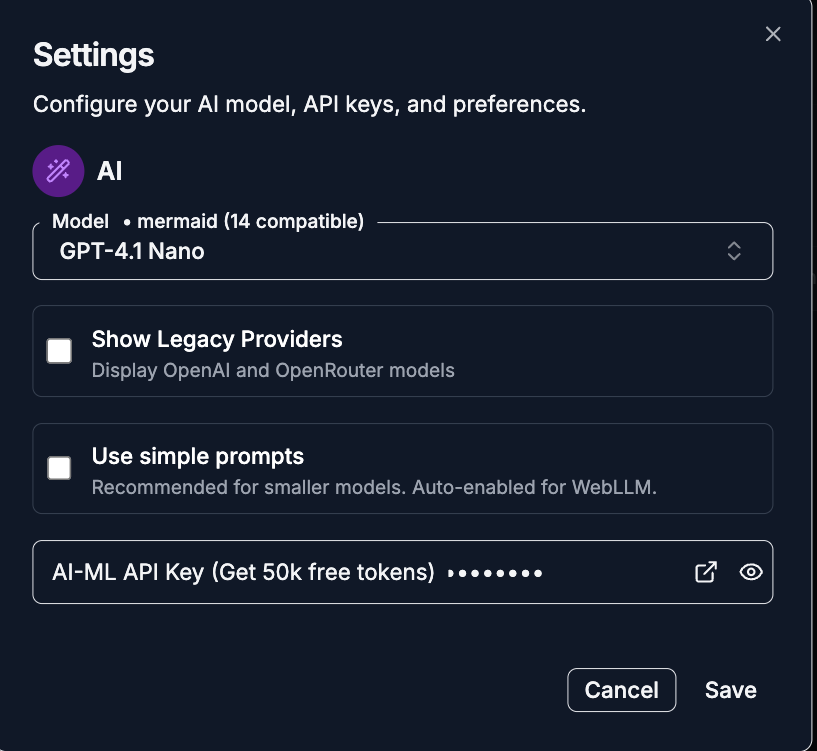
- Add API key and save.
.png)
Step 2: Open AI Chat
- Click the AI Chat button(located lower left)
.png)
- Choose "Generate" mode and provide a natural language description for the TypeScript code.
.png)
Example Prompts:
- For Type Definitions: "Generate a TypeScript interface for a User object that includes nested address fields and an optional phone number."
- For Refactoring: "Convert this vanilla JavaScript function into TypeScript with proper strict typing."
- For React/TS: "Write a React functional component in TypeScript that accepts a 'title' prop and renders a button."
- For Explanation: "Explain the difference between 'type' and 'interface' in TypeScript with an example."
Best TypeScript Editor Online for Beginners
If you are transitioning from JavaScript to TypeScript, the syntax can feel overwhelming. Our TypeScript Online Editor highlights type errors in real-time, giving you immediate feedback on what is wrong.
Popular Example: Typing a Simple Function
Copy the code below into the TS tab. It demonstrates how to define a type alias and use it in a function signature.
// 1. Define a Type Alias
type User = {
  id: number;
  username: string;
  isAdmin: boolean;
};

// 2. Create a User Object
const newUser: User = {
  id: 101,
  username: "CodeMaster",
  isAdmin: false
};

// 3. Typed Function Argument
function greetUser(user: User): string {
  const role = user.isAdmin ? "Admin" : "Member";
  return `Welcome, ${user.username}! You are logged in as ${role}.`;
}

// 4. Output to DOM
const message = greetUser(newUser);
document.body.innerHTML = `<h1>${message}</h1>`;
Why this matters for beginners:
- Error Highlighting: Try changing
isAdmin: falsetoisAdmin: "no". The editor will instantly red-underline it because a string is not a boolean. This is the power of static typing. - Instant Feedback: You see the result immediately in the preview pane.
TypeScript Sandbox with DOM Integration
One of the most powerful features of tools-online.app TypeScript Online Editor is its ability to interact with the DOM (Document Object Model). Many online compilers only run logic in a console. We allow you to manipulate HTML elements, making it perfect for frontend development.
Popular Example: Interactive Counter Class
This example (similar to your screenshot) uses a Class to manage state and update the UI.
Step 1: The HTML (Paste in HTML Tab)
<div class="app-container">
  <h2>TypeScript Counter</h2>
  <div id="counter-display">0</div>
  <button id="increment-btn">Increment</button>
  <button id="decrement-btn">Decrement</button>
</div>
Step 2: The TypeScript Logic (Paste in TS Tab)
// Define an interface for our DOM elements
interface CounterElements {
  display: HTMLElement | null;
  incBtn: HTMLElement | null;
  decBtn: HTMLElement | null;
}

class Counter {
  private count: number = 0;
  private elements: CounterElements;

  constructor() {
    // Select elements with type safety
    this.elements = {
      display: document.getElementById('counter-display'),
      incBtn: document.getElementById('increment-btn'),
      decBtn: document.getElementById('decrement-btn')
    };

    this.init();
  }

  private init(): void {
    if (this.elements.incBtn && this.elements.decBtn) {
      this.elements.incBtn.addEventListener('click', () => this.update(1));
      this.elements.decBtn.addEventListener('click', () => this.update(-1));
    }
  }

  private update(change: number): void {
    this.count += change;
    if (this.elements.display) {
      this.elements.display.innerText = this.count.toString();
    }
    console.log(`Current count: ${this.count}`);
  }
}

// Initialize the app
new Counter();
What to analyze:
- Null Checks: Notice the
if (this.elements.incBtn)check. TypeScript forces you to handle the possibility that an element might not exist (benull), preventing common "Cannot read property of null" runtime errors. - Private Properties: We use
private countto enforce encapsulation, a key Object-Oriented Programming (OOP) concept supported by TypeScript.
Advanced TypeScript Features: Generics & Enums
Senior developers can use the TypeScript Online Editor to test advanced patterns like Generics, Enums, and Utility Types.
Popular Example: Generic Data Storage
Generics allow you to create reusable components that work with any data type while maintaining type safety.
// Define a Generic Class
class StorageBox<T> {
  private contents: T[] = [];

  add(item: T): void {
    this.contents.push(item);
  }

  getLatest(): T | undefined {
    return this.contents[this.contents.length - 1];
  }
}

// Usage with Strings
const textStorage = new StorageBox<string>();
textStorage.add("Hello");
textStorage.add("World");
// textStorage.add(123); // Error: Argument of type 'number' is not 'string'

// Usage with Numbers
const numStorage = new StorageBox<number>();
numStorage.add(100);
numStorage.add(200);

document.body.innerHTML = `
  <p>Latest Text: ${textStorage.getLatest()}</p>
  <p>Latest Number: ${numStorage.getLatest()}</p>
`;
Debugging Tip:
If you uncomment the line textStorage.add(123), the editor will immediately flag it. This demonstrates how Generics provide flexibility and safety simultaneously. Check the Compiled tab to see how all this generic syntax is stripped away in the final JavaScript output.
Comparison: TypeScript Playground vs. VS Code
Why should you choose the TypeScript Online Editor on tools-online.app?
| Feature | Tools-Online Editor | VS Code (Desktop) | Official TS Playground |
| Setup Time | Instant (0s) | Slow (Install Node + TS Config) | Instant |
| DOM Support | Full (HTML/CSS Tabs) | Requires Browser/Server setup | Limited (Console focused) |
| AI Assistant | Integrated | Requires Plugins (Copilot) | None |
| Privacy | Client-Side Execution | Local | Shareable Links (Public) |
| Compiled View | One-Click Tab | Requires Build Command | Split View |
| Best For | Prototyping, DOM Logic, Learning | Full Apps, Large Projects | Pure Logic Testing |
Verdict:
- Use VS Code for large-scale applications with multiple files and dependencies.
- Use the official TS Playground for testing pure compiler behavior and configuration options.
- Use Tools-Online when you want to build actual UI components, test DOM interactions, and use AI assistance in a secure, zero-setup environment.
Related Web & Code Tools
The TypeScript Online Editor is part of a larger ecosystem of utilities on tools-online.app designed to support your development journey.
For Web Development
- HTML CSS JavaScript Editor: Sometimes you don't need types. Switch to our standard JS playground for quick and dirty prototyping without compilation overhead.
- PHP Online Editor: Building a full stack app? Test your backend PHP logic in our server-side sandbox while you build the frontend in TypeScript.
For Comparison & Validation
- JSON Compare Tool: TypeScript heavily relies on Interfaces matching API responses. Use this tool to compare your TypeScript interface structure against a real JSON response from your API.
- Code Compare Tool: Refactoring a large TypeScript file? Compare the old version vs. the new version to ensure you didn't accidentally remove critical logic.
Essential Utilities
- Online Notepad: Paste your complex Type definitions here for safe keeping while you experiment with different implementations in the editor.
For a complete list of recommended workflows, check out our comprehensive guide on Top 9 Browser-Based Utilities for Daily Tasks.
Start Coding TypeScript
Stop configuring webpack. Write, compile, and run type-safe code instantly in your browser with our secure, AI-powered sandbox.