
Free Online File Merger - PDF, Word, Excel, CSV & JSON Combiner

Table of Contents
Free Online File Merger - Multi-Format Document Combiner
A File Merger Tool eliminates the need for expensive desktop software by providing browser-based tools that intelligently combine multiple files while preserving formatting, structure, and data integrity.
These client-side processors support PDF, Word, Excel, CSV, JSON, XML, and text files with zero server uploads.
Supported File Types and Merge Behavior:
PDF Files    → Sequential page combination with bookmark preservation
Word (DOCX)  → Document combination with page breaks between files
Excel (XLSX) → Sheet consolidation with column union strategy
CSV Files    → Row combination with header alignment and data preservation
JSON Files   → Array concatenation and object property merging
XML Files    → Root element merging with namespace handling
Text Files   → Line-by-line combination (.txt and .md supported)
Benefits of Online File Merger vs Desktop Software
Online file mergers provide significant advantages over traditional desktop software like Adobe Acrobat, Microsoft Office suites, and command-line utilities, especially for users requiring privacy, flexibility, and cost savings.
Why Use File Mergers?
File merging tools are essential for modern document management:
Streamlined Workflows:
- Eliminate manual copying - Combine files automatically instead of copy-pasting
- Maintain consistency - Preserve formatting and structure across merged documents
- Save time - Process multiple files in seconds vs. hours of manual work
- Reduce errors - Automated merging prevents copy-paste mistakes
Why Use Online Mergers Over Desktop Software?
Cost & Accessibility:
- Zero cost - No Adobe Acrobat ($180/year) or Microsoft Office subscriptions required
- No installation - Access from any device with a web browser
- Cross-platform - Works on Windows, Mac, Linux, ChromeOS identically
- Instant availability - No downloads, updates, or configuration needed
Privacy & Security:
- Client-side processing - Files never leave your device
- No server uploads - Complete privacy for sensitive documents
- WebAssembly execution - Desktop-class performance in the browser
- Memory-only operation - No temporary files or disk storage used
Problems with Desktop File Merging Software
Traditional software challenges:
- Expensive licenses - Adobe Acrobat Pro costs $179.88/year for PDF merging alone
- Feature limitations - Free tools often have file count or size restrictions
- Installation requirements - Requires admin rights and disk space
- Platform dependency - Software may not work on all operating systems
- Learning curve - Complex interfaces requiring training
According to business productivity research, document processing automation saves 5-10 hours per week for knowledge workers managing multiple file sources, with online tools reducing software costs by 90%.
How to Merge Files Online : Step-by-Step Guide
The File Merger Tool on tools-online.app provides a comprehensive file combination with intelligent features designed for business, academic, and technical workflows.
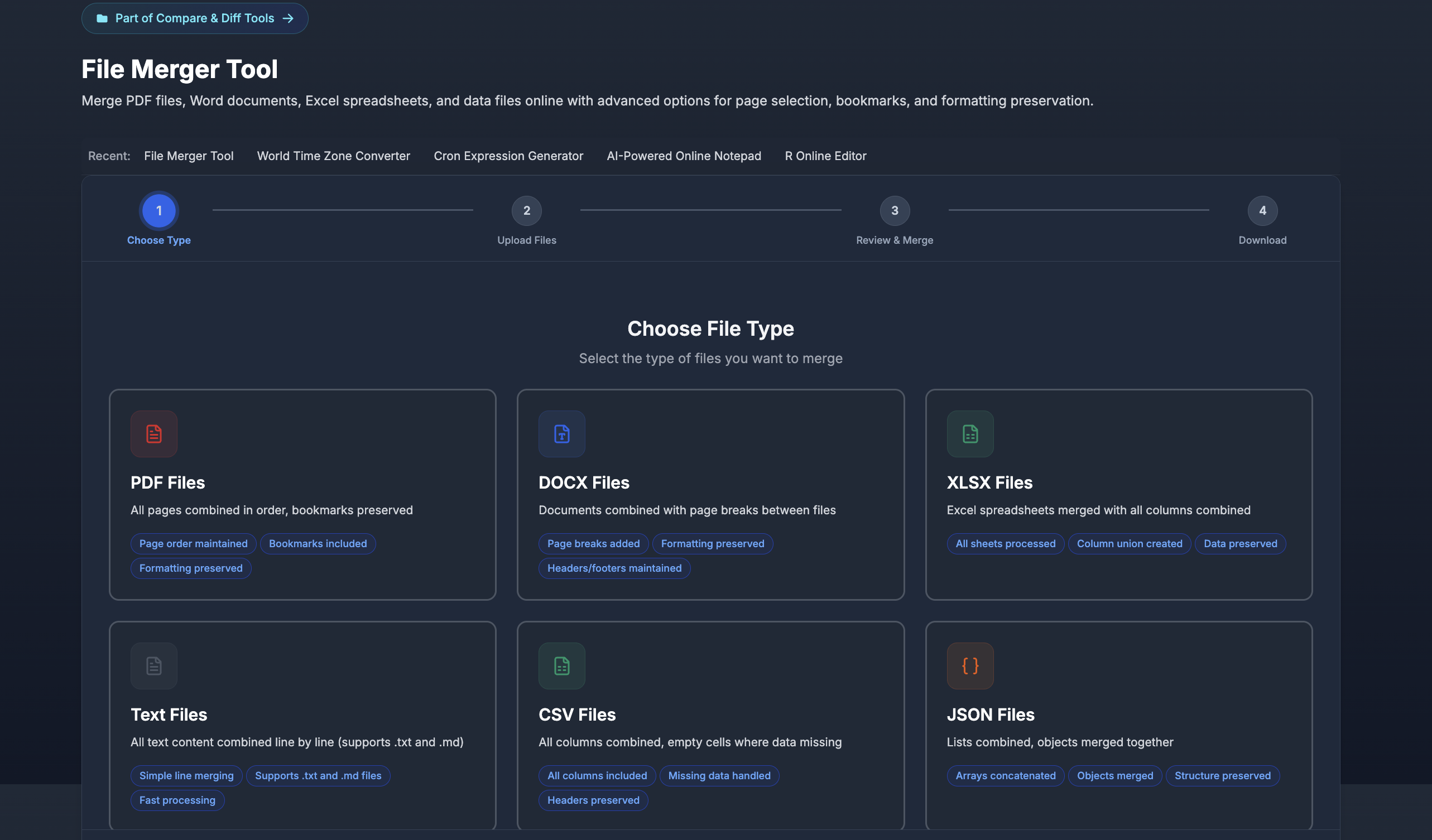
4-Step Merge Process:
- Choose File Type - Select format: PDF, DOCX, XLSX, CSV, JSON, XML, or Text
- Upload Files - Drag-and-drop or browse multiple files to merge
- Review & Configure - Reorder files and adjust merge settings
- Download Result - Get combined file with preserved formatting
Merge PDF Files Online
Step 1: Visit tools-online.app/tools/merge-files
Step 2: Select PDF Files card
- Click on PDF option showing "Page order maintained, Bookmarks included"
- Tool will prepare for PDF-specific processing
Step 3: Upload multiple PDF files
- Drag and drop PDFs directly onto upload area
- Or click Browse to select files from computer
- Upload 2-100+ PDFs depending on total size
Step 4: Reorder files if needed
- Drag files in list to reposition
- Final PDF will have pages in displayed order
- Top file appears first, bottom file appears last
Step 5: Review merge configuration
- Verify all files listed correctly
- Check total page count and file size
- Confirm bookmark preservation is enabled
Step 6: Click Merge Files button
- Processing happens in browser using pdf-lib
- Progress bar shows completion percentage
- Large files may take 10-30 seconds
Step 7: Download combined PDF
- Click Download Result button
- Save merged PDF to your computer
- File name: "merged-document.pdf" (rename as needed)
Combine Excel Spreadsheets Online
Step 1: Visit tools-online.app/tools/merge-files and select XLSX Files from file type options
Step 2: Upload Excel files to merge
- Drag all .xlsx files into upload area
- Support for files with multiple sheets
- Maximum 100MB total file size
Step 3: Understand merge behavior
Column Union Strategy:
- All unique columns from all sheets combined
- Missing data shown as empty cells
- Headers from first file used as reference
- Duplicate columns merged intelligently
Sheet Name Handling:
- Sheets with same name merged together
- Sheet order: File1-Sheet1, File1-Sheet2, File2-Sheet1...
- All sheets included in final workbook
Step 4: Review and merge
- Check file list shows all workbooks
- Verify sheet count is accurate
- Click Merge Files to process
Step 5: Download merged Excel file
- Combined workbook contains all sheets
- Data structure preserved across all cells
- Open in Microsoft Excel, Google Sheets, LibreOffice
Combine CSV Data Files Online
Step 1: Visit tools-online.app/tools/merge-files and choose CSV Files option
Step 2: Upload multiple CSV files
- Works best with CSVs having similar column structure
- Different structures handled with missing data filling
- No file count limit
Step 3: Configure merge settings
Header Handling:
- First file's headers used for combined CSV
- Subsequent files aligned to these headers
- Missing columns filled with empty values
- Extra columns from later files appended
Step 4: Process and download
- Merged CSV combines all rows from all files
- Header row appears once at top
- Data rows follow in upload order
- Download as "merged-data.csv"
Merge JSON Configuration Files Online
Step 1: Visit tools-online.app/tools/merge-files and select JSON Files merge type
Step 2: Upload JSON files
- Supports arrays, objects, and mixed structures
- Intelligent merging based on data type
Step 3: Understand merge behavior
Array Merging:
json
File1: [1, 2, 3]
File2: [4, 5, 6]
Result: [1, 2, 3, 4, 5, 6]
Object Merging:
json
File1: {"name": "Alice", "age": 30}
File2: {"city": "NYC", "age": 31}
Result: {"name": "Alice", "age": 31, "city": "NYC"}
Mixed Type Handling:
json
File1: [1, 2]
File2: {"key": "value"}
Result: [[1, 2], {"key": "value"}]
Step 4: Download merged JSON
- Result is valid JSON structure
- Use for configuration files, API responses
- Maintains nested data integrity
Fixing Common File Merging Problems
PDF Merging Issues
Problem: Bookmarks Disappear After Merge
❌ Cause: Source PDFs lack bookmarks or use unsupported bookmark format
✅ Solution:
- Verify bookmarks exist in source PDFs before merging
- Use tools like Adobe Acrobat to add bookmarks if missing
- Our merger preserves existing bookmarks but cannot create new ones
Problem: File Size Grows Too Large
❌ Cause: High-resolution images, embedded fonts, uncompressed content
✅ Solution:
- Compress individual PDFs before merging
- Reduce image resolution in source files
- Remove embedded fonts if not critical
- Use smaller page size (Letter vs Tabloid)
Excel Merging Issues
Problem: Data Appears in Wrong Columns
❌ Cause: Column name mismatches across files
File1: "Customer Name", "Email"
File2: "CustomerName", "Email Address"
→ Tool treats as 4 separate columns
✅ Solution:
- Standardize column headers across all files before merging
- Use exact same spelling, spacing, and capitalization
- Review merged output and manually fix misalignments if needed
Problem: Browser Crashes During Large File Merge
❌ Cause: Exceeding 50K row or 1K column limits per sheet
✅ Solution:
- Split large files into smaller chunks before merging
- Remove unnecessary columns to reduce width
- Merge in batches (e.g., 2-3 large files at a time)
- Close other browser tabs to free memory
CSV Merging Issues
Problem: Extra Commas Breaking Data Structure
❌ Cause: Unquoted fields containing commas
Name, Age, Location
John, 30, New York, NY  ← Extra comma breaks parsing
✅ Solution:
- Ensure CSV files properly quote fields containing commas
- Use CSV validators before merging
- Clean data in spreadsheet software before export
Problem: Headers Not Aligning
❌ Cause: Different column names or order across files
✅ Solution:
- Open all CSVs and standardize header row
- Ensure exact match: "user_id" ≠ "User ID" ≠ "userid"
- Reorder columns in source files to match before merging
JSON Merging Issues
Problem: Data Loss During Object Merge
❌ Cause: Key conflicts overwrite earlier values
File1: {"config": {"port": 3000}}
File2: {"config": {"host": "localhost"}}
→ File2 completely replaces File1's config
✅ Solution:
- Manually combine objects before merging
- Use array wrapping for conflicting keys
- Restructure JSON to avoid key conflicts
File Merging Best Practices
1. Standardize File Naming Conventions
Why: Ensures correct merge order and easy identification
Convention Template:
Format: [Project]_[Type]_[Date]_[Version]
Example: Q4Report_Sales_2024-12-31_v2.xlsx

Benefits:
- Alphabetical sorting matches logical order
- Clear identification of file contents
- Version tracking prevents using old files
2. Verify Data Before Merging
Pre-Merge Checklist:
- ✅ All files are correct format (all PDF, all XLSX, etc.)
- ✅ Column headers match across Excel/CSV files
- ✅ No corrupted or partially downloaded files
- ✅ File sizes are reasonable for browser processing
- ✅ Backup original files before merging
3. Test Merge with Sample Files First
Why: Prevents data loss and formatting issues
Testing Process:
- Create copies of 2-3 source files
- Perform test merge with copies
- Verify output structure and content
- Check for formatting preservation
- Proceed with full merge if successful
4. Document Merge Sources
For Business Records:
- Track which files were merged into final document
- Note merge date and person responsible
- Keep source files for audit trail
- Document any manual corrections applied
5. Optimize Files Before Merging
Performance Optimization:
PDF Optimization:
- Remove unnecessary pages
- Compress images to web resolution (150dpi)
- Flatten form fields if not needed
- Remove embedded multimedia
Excel Optimization:
- Delete hidden sheets and columns
- Remove unused formatting and styles
- Clear empty rows at end of sheets
- Simplify complex formulas if possible
CSV Optimization:
- Remove duplicate rows
- Trim whitespace from all fields
- Validate data types (numbers as numbers, not text)
- Remove unnecessary columns
6. Plan for Large File Processing
Browser Resource Management:
- Close unnecessary browser tabs before merging
- Use latest browser version (Chrome/Edge/Firefox)
- Ensure system has 4GB+ available RAM
- Merge during low-activity times for large files
Batch Processing Strategy:
Instead of: Merging 20 files at once
Better: Merge in groups of 5-10, then merge results

Step 1: Merge files 1-10 → Result A
Step 2: Merge files 11-20 → Result B
Step 3: Merge Results A + B → Final
7. Validate Merged Output
Post-Merge Verification:
- PDF: Check page count, verify bookmarks navigate correctly
- Excel: Confirm row count, test formulas, verify sheet names
- CSV: Check row count matches sum of source rows + 1 header
- JSON: Validate JSON syntax with online validator
8. Establish Merge Workflows
For Recurring Merges:
- Document the merge process step-by-step
- Create templates for source file structures
- Set up automated file collection (shared folders)
- Schedule regular merge operations (monthly reports, etc.)
- Train team members on consistent process
Related Tools
Complete Tool Collections
Browse by Category:
- Online Productivity Tools - Complete document workflow optimization
- Online Data Tools - CSV, JSON, XML processing and validation
- Compare & Diff Tools - Track changes in merged documents
Complementary Productivity Tools On tools-online.app:
- AI Notepad - Create and format documents before merging
- Time Zone Converter - Coordinate file sharing across global teams
- Cron Expression Generator - Schedule automated file processing
Educational Resources
- Essential Online Utilities Checklist for Developers 2025 - Complete toolkit including file utilities
- Top 9 Browser-Based Utilities for Daily Tasks: 2025 Complete Guide - Daily document workflows
Discover More: Visit tools-online.app to explore our complete suite of document management and productivity tools.
Start Merging Files Now
Stop paying for expensive PDF software. Merge files online with intelligent algorithms preserving formatting and structure—100% free with client-side processing and complete privacy. No downloads required.